Documentation
orbench is a desktop app that runs your own tasks against any OpenRouter model, scores every answer with a judge you configure, and records cost, tokens and latency per call. Everything runs locally: prompts, results, logs and keys stay on your machine. Network traffic is limited to OpenRouter (with your key), the license check and the update feed. There are no usage analytics.
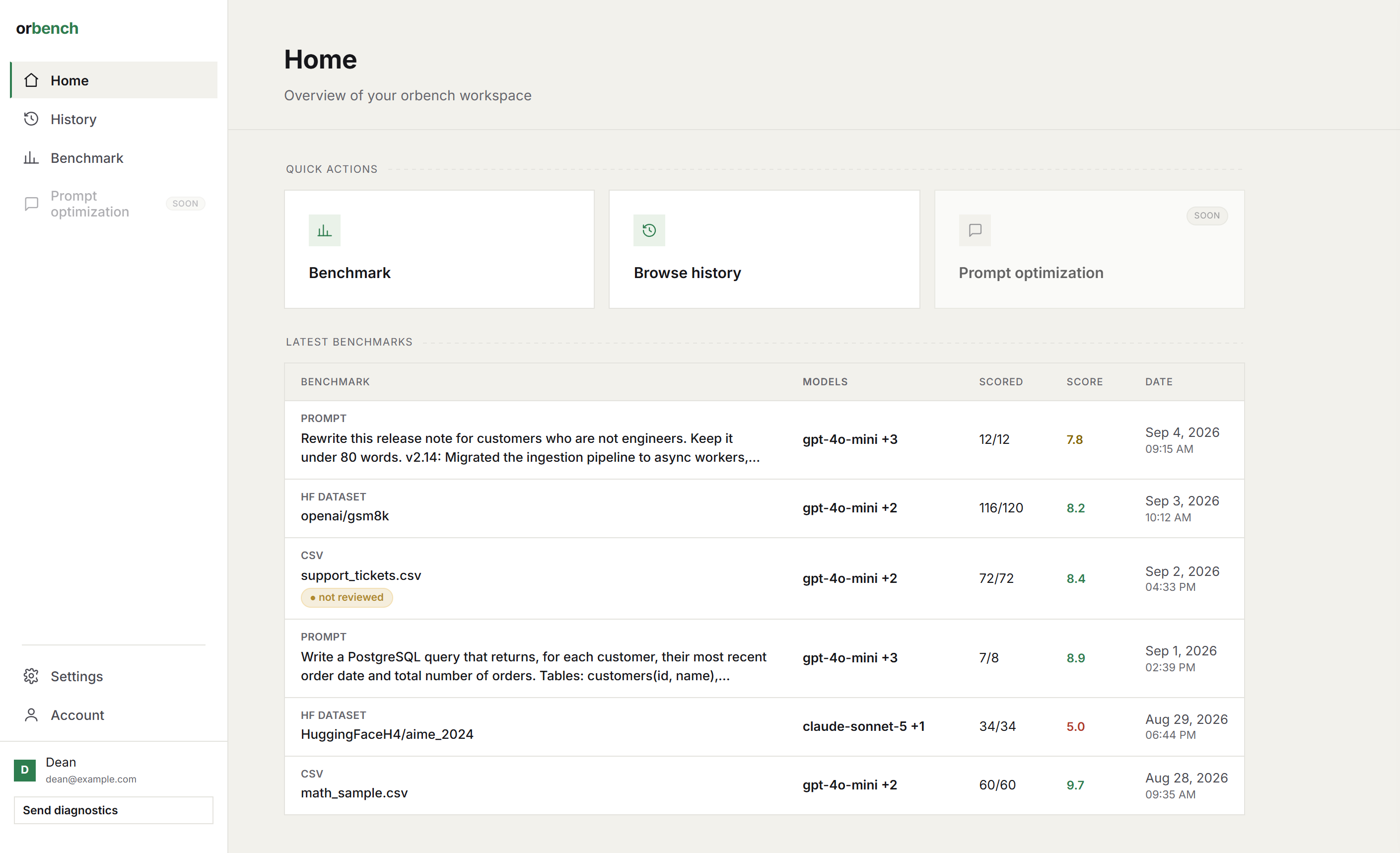
Home: quick actions and the latest benchmarks.
Install and sign in
orbench runs on Windows 10 and later and macOS (Apple Silicon). A Linux build is available as an AppImage (requires WebKitGTK, e.g. gir1.2-webkit2-4.1 on Ubuntu/Debian). The app, data layout and workflow described here are the same on all platforms, only the paths differ (see Data on disk).
Windows: run the installer from the downloads page. It adds Start Menu and desktop shortcuts and installs the Microsoft WebView2 runtime only if it is missing. Silent install: orbench-setup-<version>.exe /SILENT.
macOS: open the .dmg, drag orbench into Applications. The build is unsigned, so the first launch is blocked with "Apple could not verify orbench is free of malware". Dismiss the dialog, then go to System Settings → Privacy & Security and click Open Anyway, then launch again. The first launch after that can take around 30 seconds while macOS scans the app, and macOS may ask once whether orbench may find devices on the local network: you can safely decline it, orbench never uses the local network, it only runs a private server on your own machine. Linux: download the AppImage, chmod +x, run it.
Builds are not code-signed. Windows shows "Windows protected your PC" on first run. Click More info, then Run anyway. On macOS use the Open Anyway step above. Only do this for installers downloaded from orbench.com.
First launch asks for your orbench account email and password. Activation needs the network once; the license is then cached as a signed file and orbench works offline for the duration of your license.
OpenRouter key
All model calls go through OpenRouter on your own key and credit. Create a key at openrouter.ai/keys, open Settings and paste it into the API key field. The OpenRouter base URL is configurable if you route through a gateway.
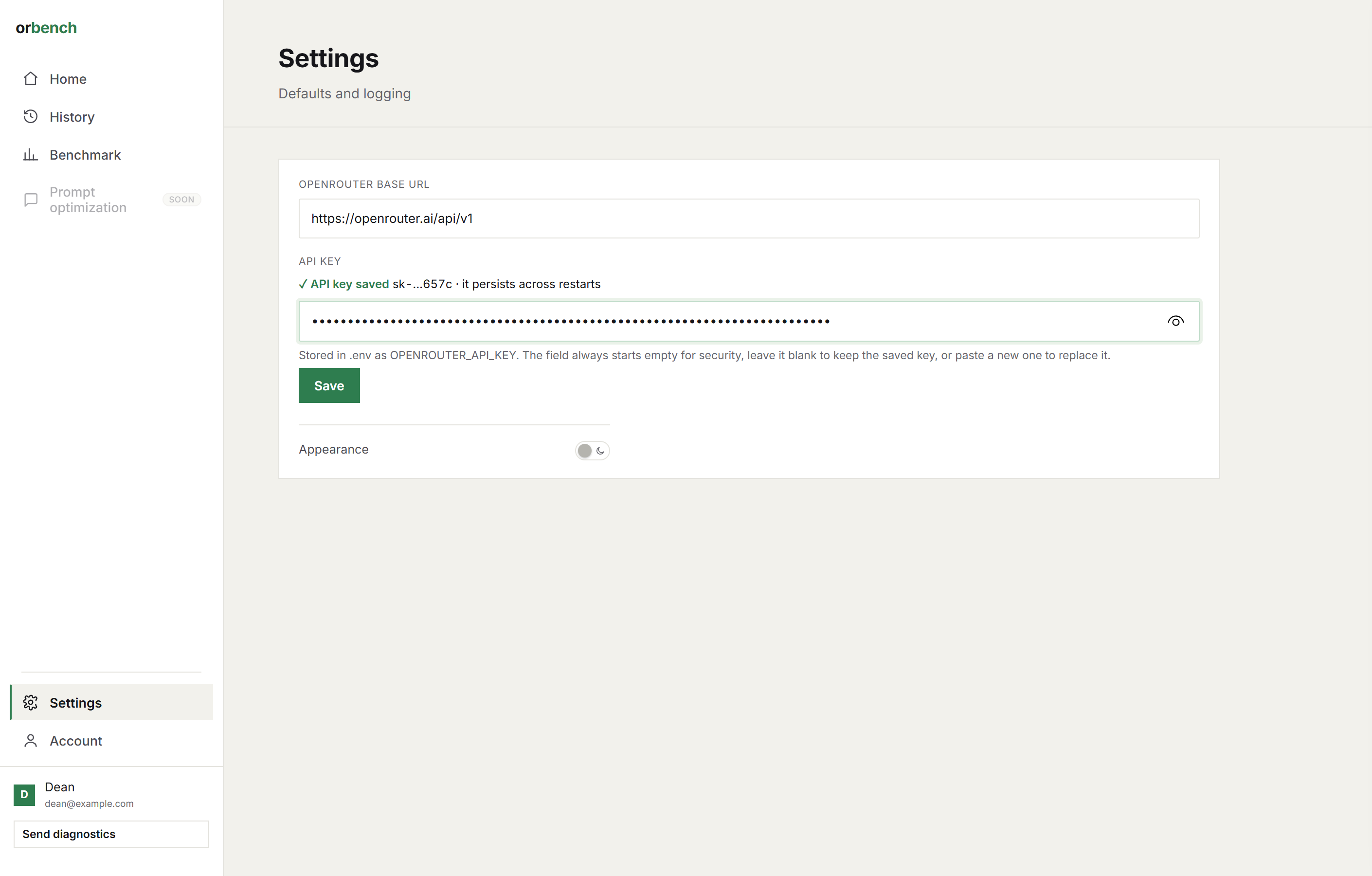
Settings. The key field always starts empty; leave it blank to keep the saved key.
Both values are stored in the .env file of your data folder as OPENROUTER_API_KEY and OPENROUTER_BASE_URL. Environment variables with the same names take precedence over the file.
Run a benchmark
The Benchmark page offers two actions: Run a benchmark, and Compare benchmarks.
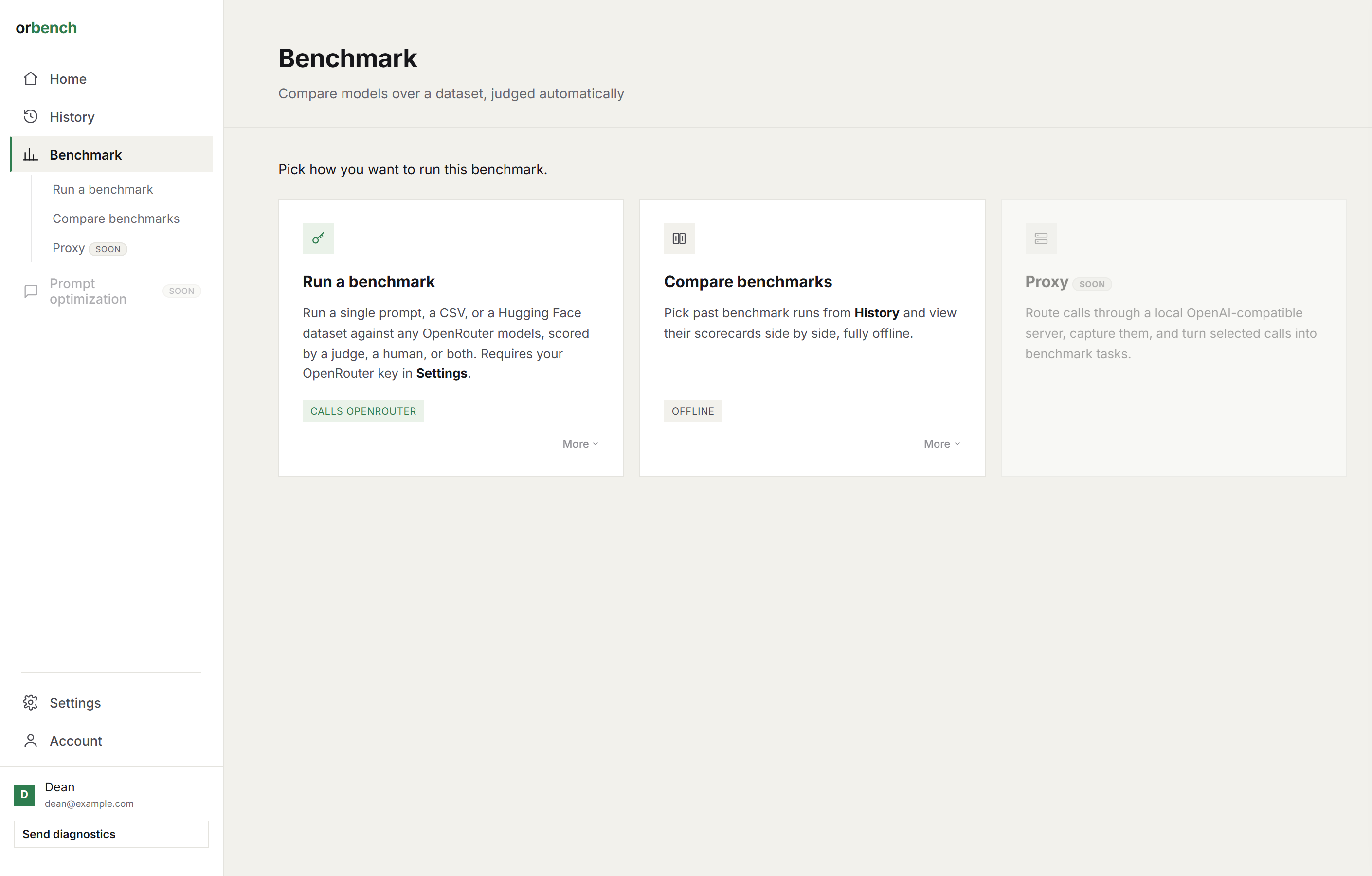
The Benchmark page.
Run a benchmark is a three-step form:
- Check your API key. Confirms the key from Settings is present. Every call made during the run is logged to
logs/. - Build your benchmark. Pick a task source (a single prompt, a CSV, or a Hugging Face dataset), write the prompt or prompt template, add the models to compare, and set the run settings listed below.
- Set up judge. Choose a scoring mode, write the criteria, set the score range and pick a judge model. See Judge and scoring.
Then Run benchmark. Results stream in per model and per task; the finished run is saved to History and gets a report. Runs keep going in the background if you switch views.
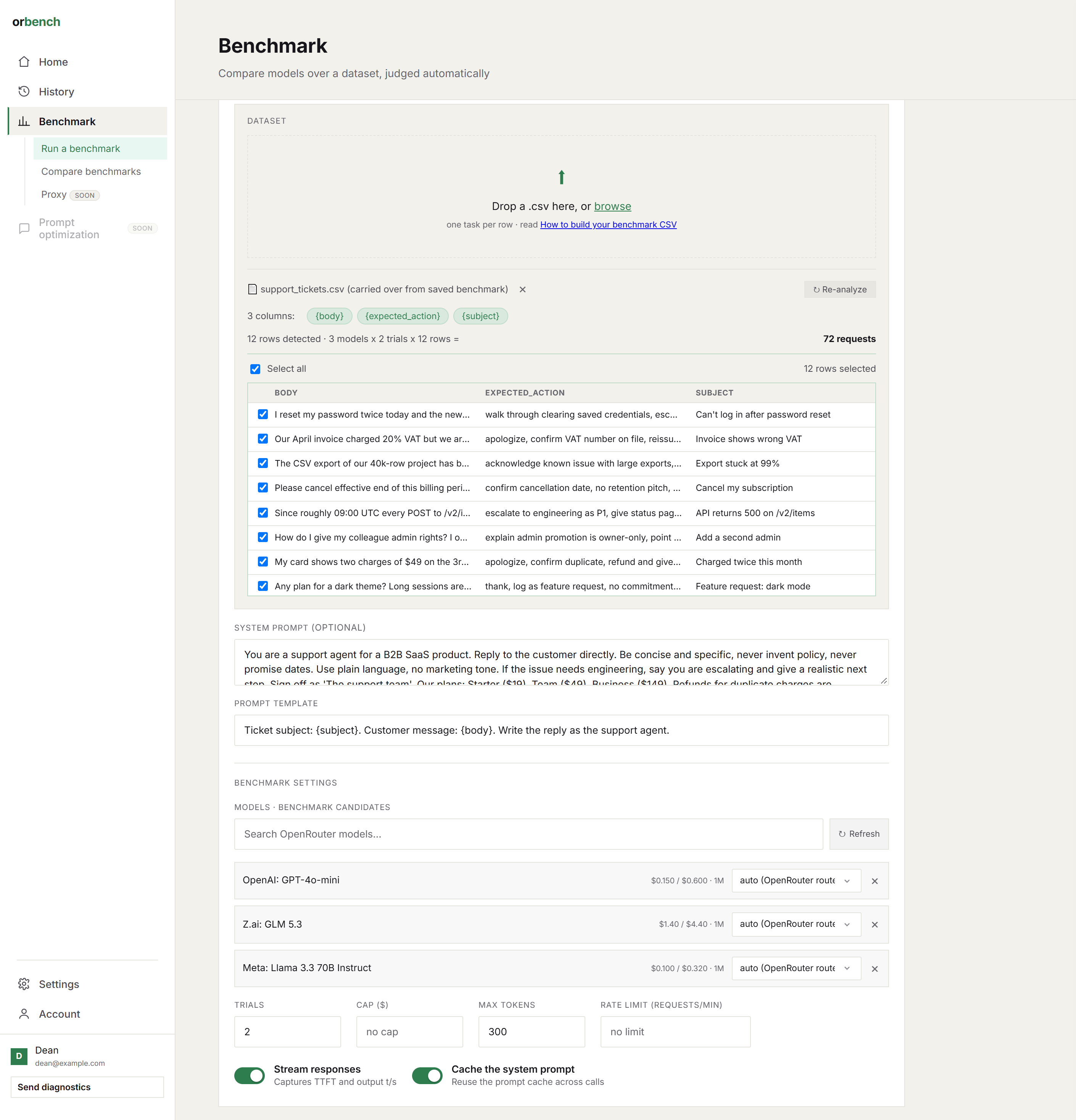
Step 2 of the form, pre-filled from a saved CSV benchmark.
Run settings
| Setting | What it does |
|---|---|
| Models | The candidates to compare, any model on OpenRouter. Provider stays on auto unless you pin a specific host. List price per 1M tokens is shown next to each model. For picking candidates and the full workflow end to end, see the OpenRouter model benchmarking guide. |
| Trials | How many times each task is sent to each model. Models answer the same question differently each time; more trials average out the luck. Default 1. |
| Cap ($) | Per-run spending ceiling. Once reported spend reaches it, orbench stops starting new calls; the call in progress finishes, so actual spend can overshoot by one call. The judge is skipped for anything not yet scored when the cap hits. |
| Max tokens | Caps the length of each reply, sent as max_tokens. Blank means the model's own default. Applies to the candidates only, never to the judge. A reply cut off by the cap is labeled max tokens in the report. |
| Rate limit | Requests per minute, per model. orbench paces its calls to stay under the number instead of firing everything and recovering from 429s. The judge is paced the same way, by model name. A 429 that still gets through is retried with backoff. |
| Stream responses | Off by default. Streams tokens so that time to first token (ttft) and output speed (t/s) can be measured. Reply content is identical either way; see below. |
| Cache the system prompt | Marks the system prompt with an OpenRouter cache_control breakpoint so providers with explicit caching reuse it across calls; see below. |
Stream responses
Off: one request, one response. You get total wall-clock time, tokens and cost; ttft and t/s are blank because there is no per-token timing to measure. On: tokens are timestamped as they arrive, giving ttft (request sent to first answer token) and t/s (average output rate after the first token). For reasoning models, which stream their thinking before the answer, orbench separates time to first reasoning token from ttft of the answer, so a model that thinks for 20 s is not mistaken for a slow connection.
Turn it on when latency is part of the decision (chat, autocomplete). Leave it off when you only care about quality and cost.
Cache the system prompt
The system prompt is sent with a cache_control: ephemeral breakpoint. Providers with explicit caching (Anthropic, Gemini) honour it: the first call pays a small write premium (cache_write_tokens), later calls within the cache window read it at a discount (cached_tokens). Providers that cache automatically (OpenAI, DeepSeek, Grok) ignore the marker and cache on their own, so you can see cache activity in a report with the toggle off. The report shows what the provider actually did, not what you asked for.
It matters most for dataset runs: 500 rows sharing one long system prompt is exactly the shape caching is for. If your production app caches, benchmark with it on, since that is the cost you would actually pay.
Task sources
| Source | What it is | Use when |
|---|---|---|
| Single quick request | One prompt (plus an optional system prompt), run across models and trials. | Quick comparisons, prompt iteration. |
| Upload a CSV | Each row is a task; every column becomes a template variable. | Your own task suites, regression sets, exported production traffic. |
| Hugging Face | Any public Hugging Face dataset. Pick config and split; rows are fetched through the datasets-server API. | Standard evals (GSM8K, AIME, MMLU subsets). |
A CSV needs a header row. Column names become the {placeholders} available in the prompt template and the judge criteria:
question,expected
"What is 7 * 8?","56"
"Capital of Australia?","Canberra"
Dataset runs are capped at 500 rows per run to keep cost predictable; split larger sets across runs. For the full format, the quoting and encoding rules, and how to design a task set, see How to build a benchmark CSV.
Running a slice
Once a CSV or Hugging Face dataset is analyzed, Use all rows is ticked. Untick it to set a from / to row range. The request count and the pre-run summary follow the selection, and only those rows are sent (for Hugging Face, only that slice is fetched). Useful for trying a template on five rows before spending on five hundred.
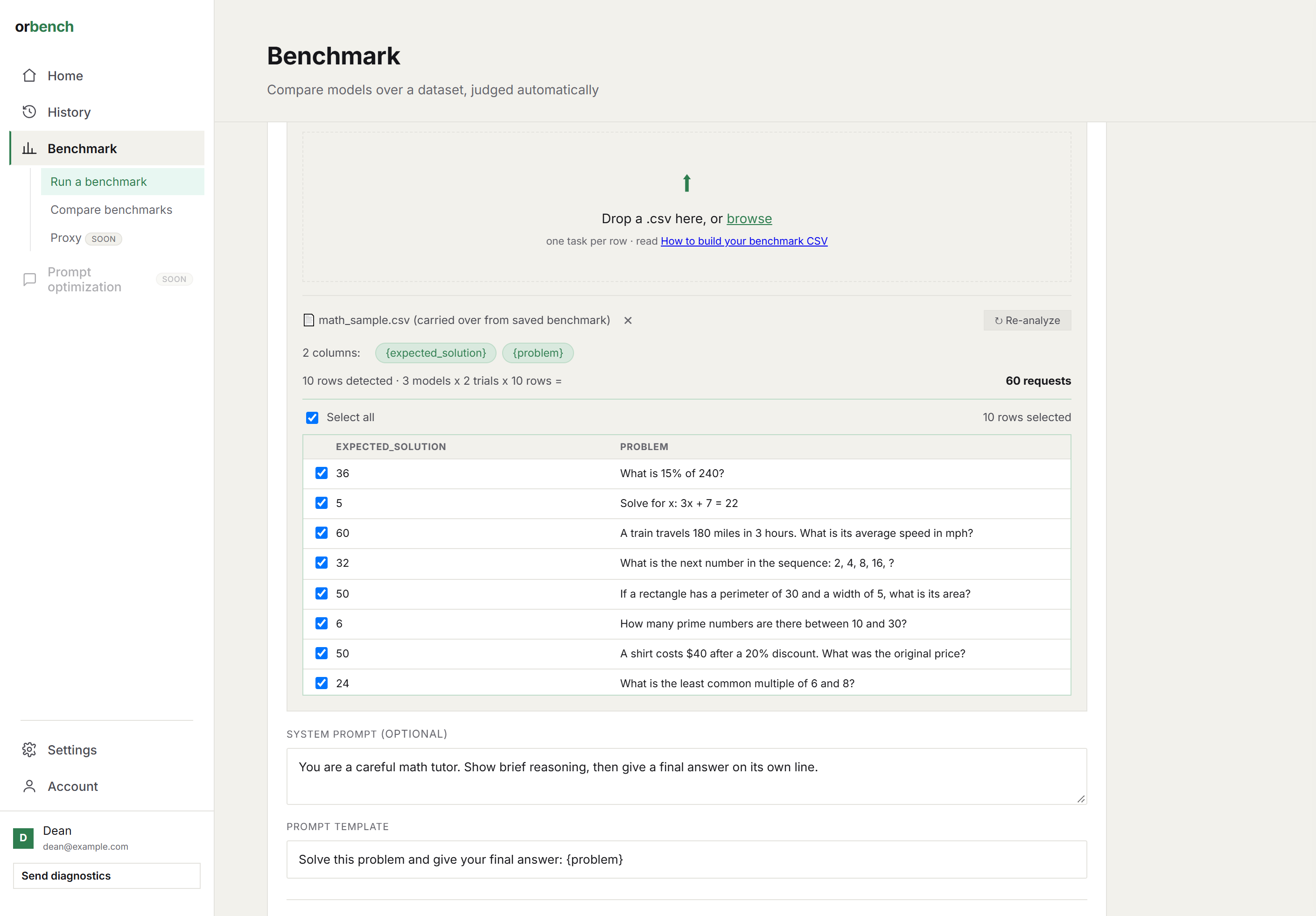
A CSV analyzed in the app: columns become chips, rows 1 to 5 selected out of 10.
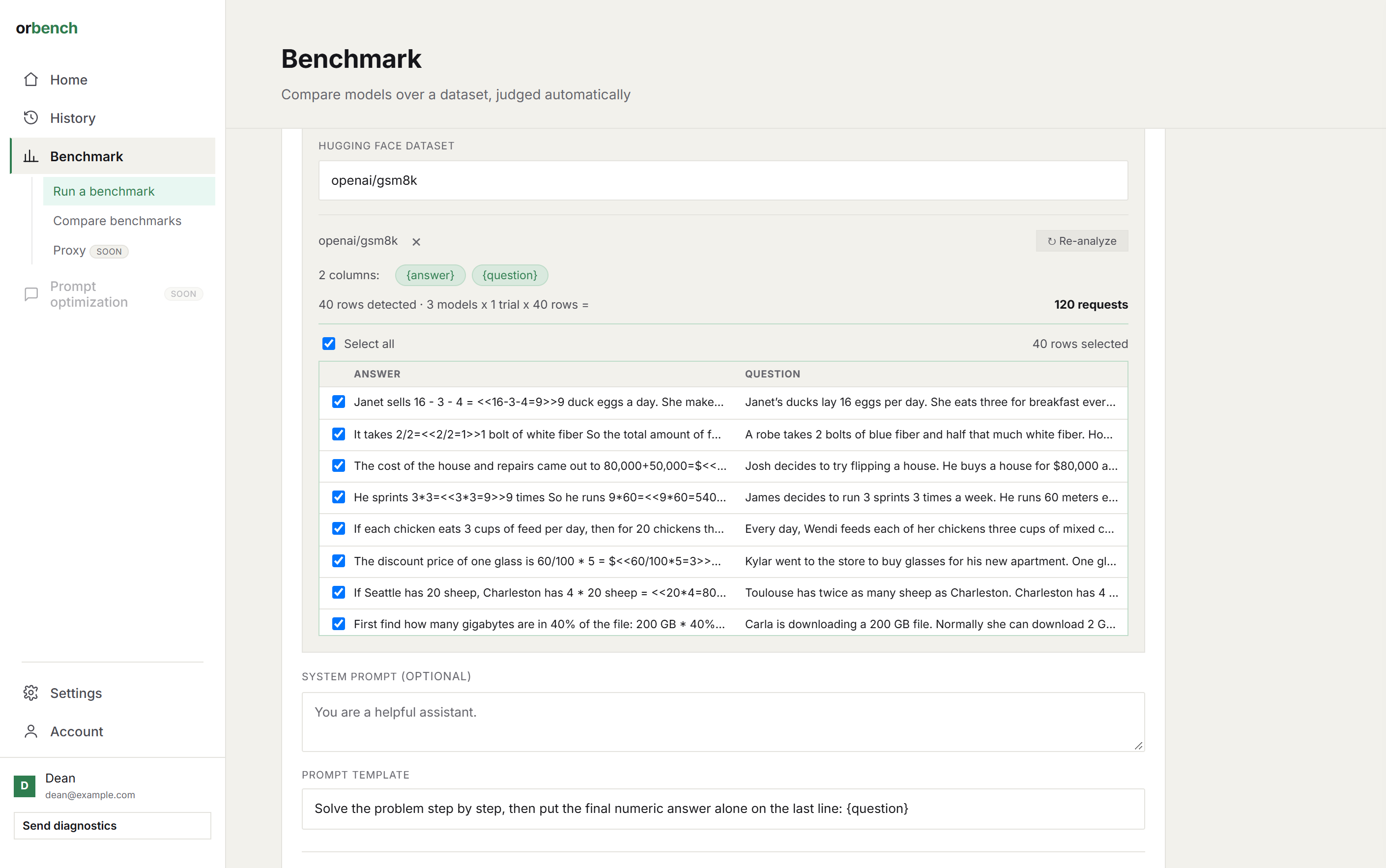
A Hugging Face dataset analyzed: 40 rows of openai/gsm8k, 3 models, 120 requests.
Prompt templates
A template is written once with {column} placeholders; each dataset row fills them in to produce one task:
Answer with only the final number, no working. {question}A placeholder whose name is not a column is left in place rather than emptied out, so a typo reaches the model as literal text: check one assembled prompt before a long run. That same rule is what lets a template contain \boxed{answer} safely. History stores the template as the run's prompt; the per-row values are kept with each result, and a re-run reuses the exact rows of the original rather than re-reading the file or re-fetching the dataset.
Judge and scoring
"Nothing errored" is not a quality signal. Scoring has a second model, the judge, read every answer and grade it against criteria you write, so raw replies become comparable numbers.
| Scoring mode | Behavior |
|---|---|
| AI judge | The judge model scores every response against your criteria, within your score range. |
| AI + human review | The judge scores first. You then review responses blind (model names hidden) and override where you disagree; your score wins. |
| Human only | No judge call. You score every response yourself in the blind review. |
Judge settings
| Setting | What it does |
|---|---|
| Criteria | The rubric, in plain language. For dataset runs it accepts the same {column} placeholders as the prompt template, filled per row. |
| Score min / max | The scale the judge must use. There's no fixed pass/fail cutoff - it's your scale and your criteria, so the report shows the score itself rather than bucketing it. |
| Judge trials | Score each response this many times and average the scores. Raise it when judge scores look noisy. |
| Judge model | One model scores every response. Pick one at least as capable as the strongest candidate, ideally from a different model family to reduce same-family bias. |
| Judge all responses in one call | Sends the whole result set in one judge request instead of one per response. Cheaper and faster, but everything must fit the judge's context window; see below. |
Writing criteria
Anchor the ends of the scale with concrete descriptions:
10: correct final answer, clearly stated, no invented facts.
 5: right approach, arithmetic slip or missing final statement.
 0: wrong answer, hallucinated constraint, or refused the task.
With a CSV that has an expected column, placeholders turn the judge into an exact-answer checker:
10: the reply's final answer equals {expected}.
 0: anything else.
Keep the judge and the criteria fixed across runs you intend to compare; changing either changes what the scores mean.
Batch judging and context limits
If the provider rejects a batch as too large, orbench splits it and retries once. If that also fails, it judges each response separately. The run and every model response are saved regardless. The option is a preference, not a guarantee of one judge call; the actual number of judge calls is recorded with the run.
What gets judged
Only real answers reach the judge. A call that fails, comes back empty, or is cut by the provider's content filter is scored at the bottom of your scale automatically and never sent to the judge. These rows are excluded from the report's average score, so one failing model cannot drag a good one down by proxy. The full list of cases is in Failures and labels.
Metrics
| Metric | Definition |
|---|---|
| score | Judge score (or your human override) against the criteria. |
| cost | Actual billed cost per call from OpenRouter usage data, cache discounts included. |
| tok | Input and output token counts; reasoning tokens reported separately where the model exposes them. |
| ttft | Time to first token: how long before the answer starts appearing. Streaming runs only. |
| t/s | Output tokens per second once the answer has started. Streaming runs only. |
| total | Wall-clock time for the whole call, retries included. |
| retries | Extra attempts a call needed: backoff after a 429, or one whole-call retry after an empty answer. Shown per response with the time spent, summed per model. |
| failed | Calls that errored, came back empty, or were content-filtered. Scored at the minimum, excluded from averages. |
| truncated | Replies cut off at the max tokens limit (yours, or the model's own). Flagged per response, counted per model. |
For model selection the number that usually matters is cost per answered task, not cost per call: a cheaper model that fails more tasks is often the expensive one. The cost per answered task guide works through an example.
History
Every run keeps its full configuration, per-call logs, scores and cost, and is listed in History with its source (Prompt, CSV or HF dataset), models, scored count, score and date. Filter by description or model, or show starred runs only.
Per run you can expand the row for the details, Re-run it (pre-fills a new benchmark with the same source, rows, models and judge, without running it), Open the report, download it as JSON, CSV or HTML page, star it, or resume a pending human review.
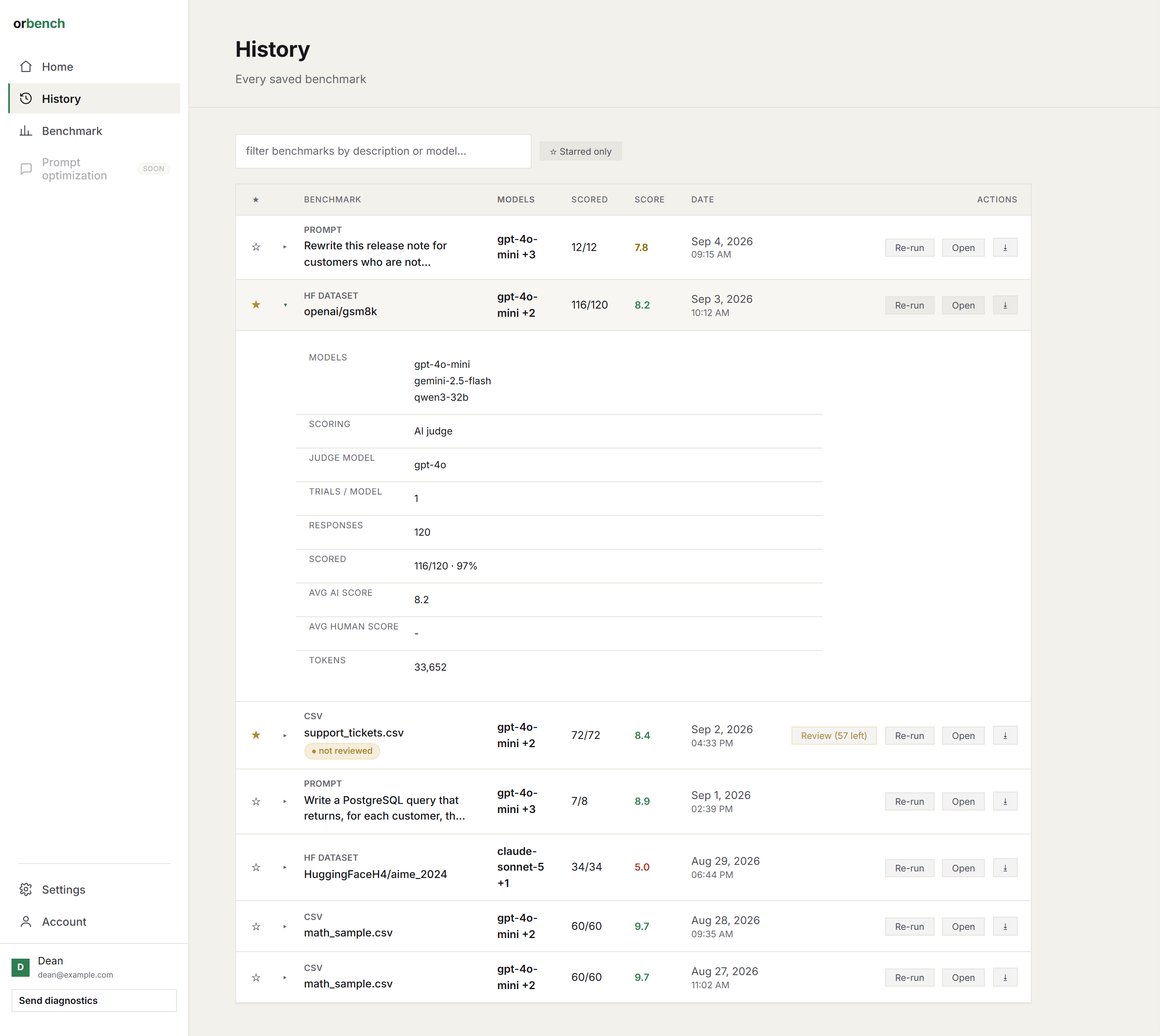
History, one run expanded.
Compare benchmarks
Compare benchmarks, on the Benchmark page, reads two or three saved runs side by side without making any calls: scoring, scored count, average scores, decode speed, TTFT, cache hit rate, cost, cost per answered task, tokens, failures and retries, followed by a per-model breakdown.
A comparison is meaningful between runs that share the same tasks, judge and criteria. Re-run from History gives you exactly that: the same rows and judge with a different set of candidate models, or the same models on a later date to catch regressions.
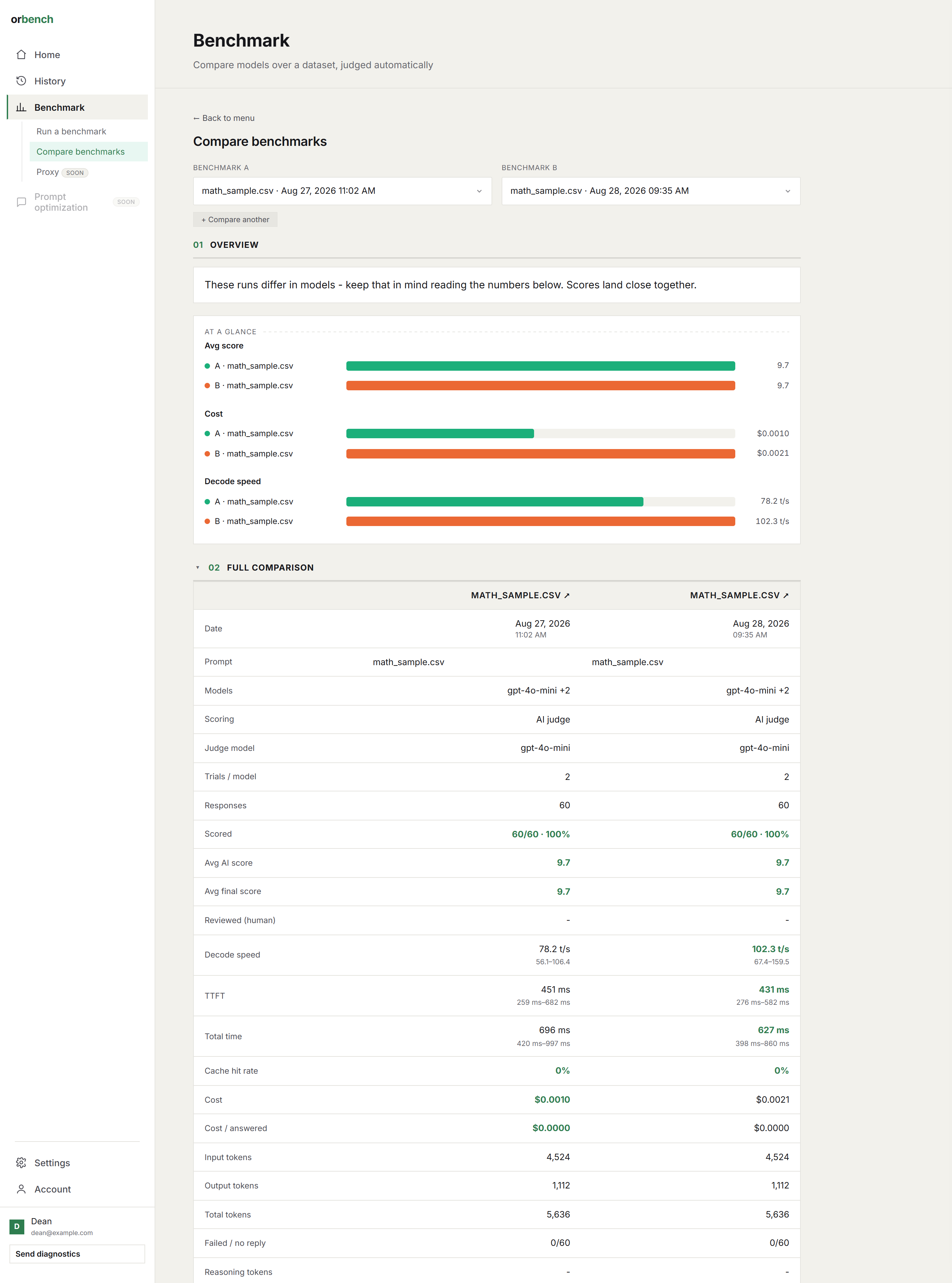
The same CSV run twice with different candidate models.
The report
Every run has a report. Open it from History or Home, or from the link a finished run leaves under the Run button. It opens in your browser as a standalone page, so it can be printed, saved (HTML page export) or handed to someone without orbench. The header chips restate how the run was made, including any max tokens cap or rate limit. A real report from a 12-task, three-model run is online at orbench.com/demo-report.html.
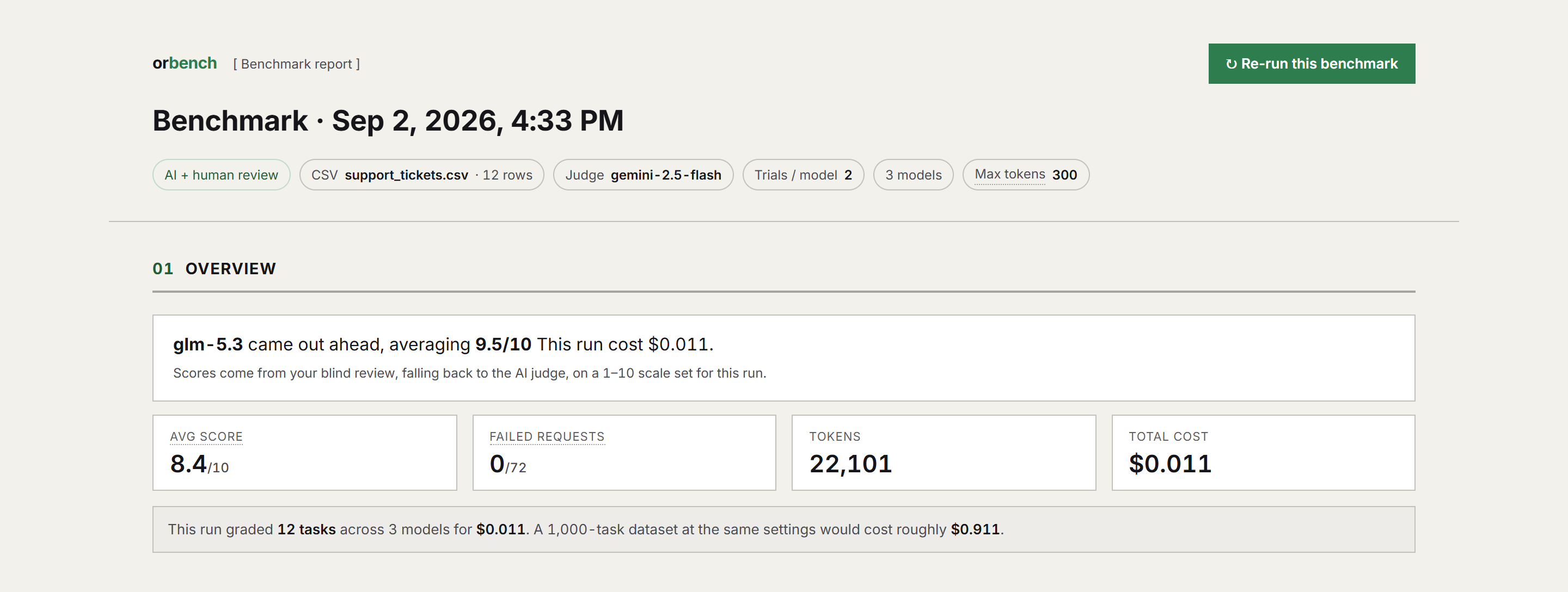
Overview: the verdict, then four numbers.
| Section | Contents |
|---|---|
| Overview | One-sentence verdict, average score over every scored response (failed calls sit at the minimum on their own rows and are counted under Failed requests instead), tokens, total cost, and an extrapolation to a 1,000-task dataset at the same settings. |
| The task | The prompt or template and the candidate models. |
| Quality | Score per model, score spread, AI vs human averages, plus score vs cost and score vs speed plots. |
| Speed | TTFT, total time, time per output token, decode speed and prefill throughput per model as a distribution across trials (1% low, mean, 99% high). |
| Cost | What each model drove in cost, with the input/output split recomputed from list pricing. |
| Caching analysis | Cached tokens, hit rate and savings on this run, and which candidates would cache your workload in production. |
| Data stats | In/out token ratio, failed, retried and truncated call counts, output length variance. |
| All responses | Every answer grouped by problem, with scores, rationale and the raw trace. |
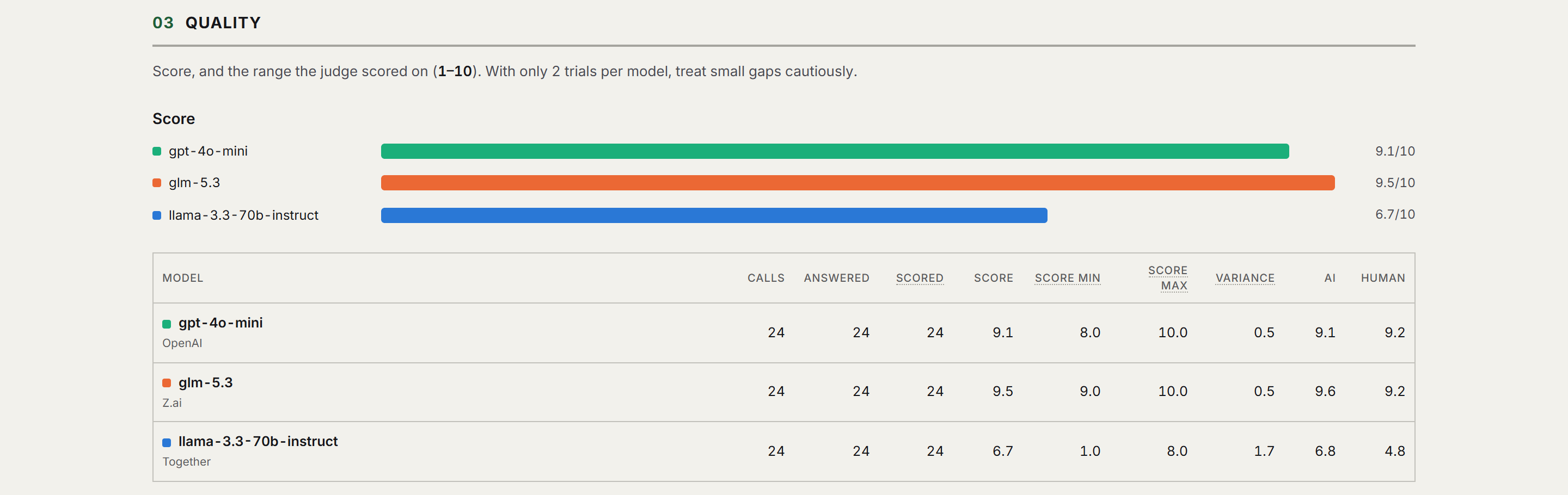
Quality: per-model bars and the full table.
All responses
Responses are grouped by problem (one per prompt, or per dataset row) and numbered, so "Problem 12" is something you can point a colleague at. Each row is one model's trial with its AI score and, for reviewed runs, your human score. Expand a row for the answer, the judge's rationale and the per-call numbers.
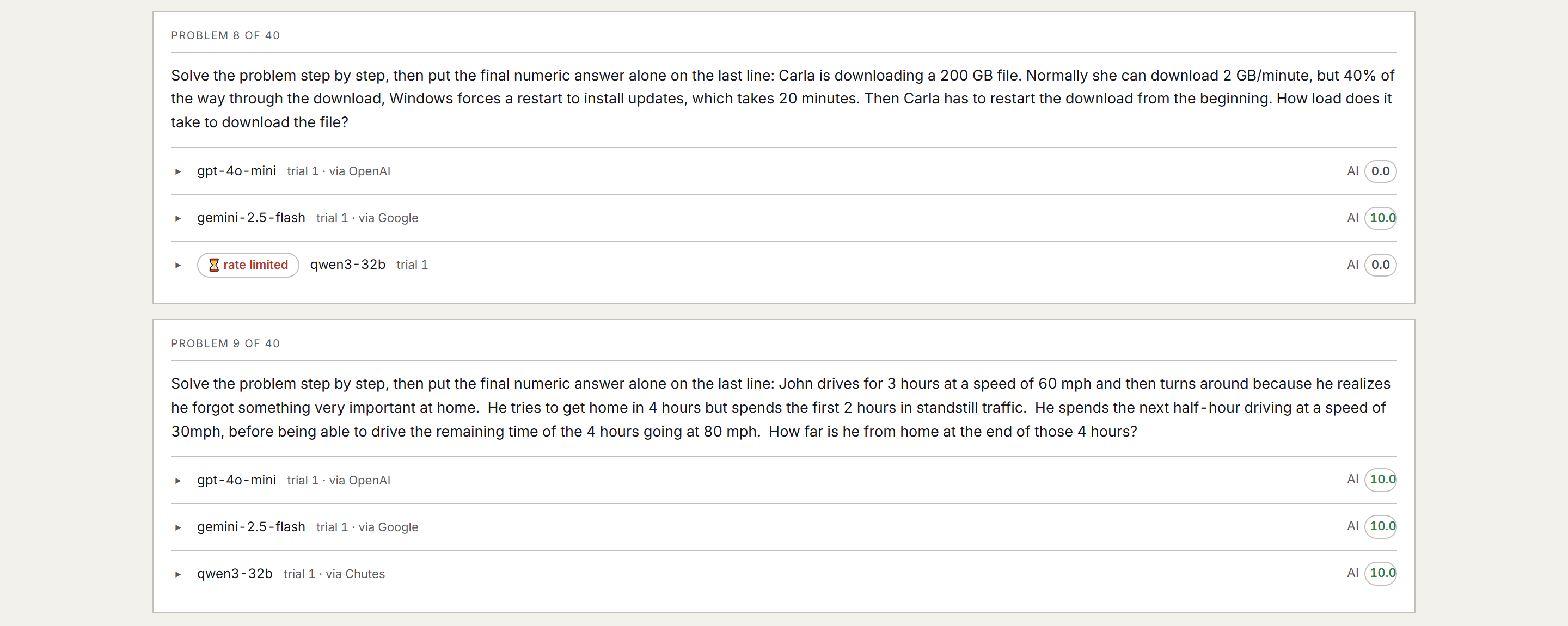
Responses grouped by problem; a rate-limited call labeled on its row.
Trace
Each response has a trace toggle showing the raw log entry for that call exactly as recorded: the messages sent, the reply, tokens, timing, and for a failed call the request plus the provider's raw error text. It is the untouched data, for when a number looks wrong and you want to see for yourself.
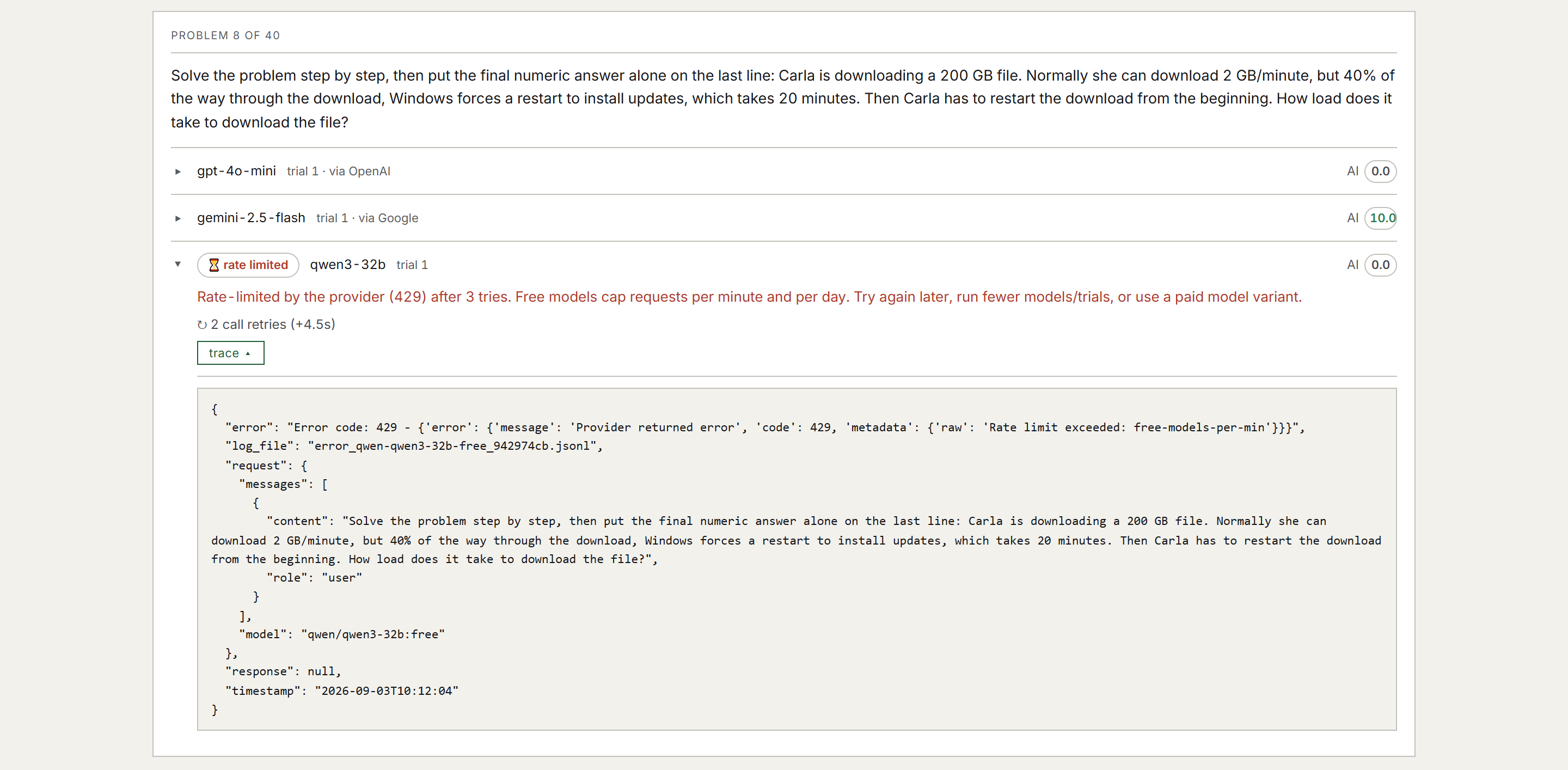
A failed call expanded: reason, retries, and the raw log entry.
At the bottom, JSON exports the complete run record, CSV one row per response (including error, finish reason, truncation and judge-failure columns), and HTML page a self-contained copy of the report.
Failures and labels
A benchmark call can fail in a handful of ways, and orbench treats each one deliberately rather than dropping it. In the report, a label appears on a response only when something technical needs attention, never as a quality verdict; the score already says that. Every failed call keeps its raw trace, so the provider's own error text is one click away.
| Label | What happened | Score | What to do |
|---|---|---|---|
| error | The call failed: provider error, timeout, out of credits, invalid key, or the model returned nothing after one automatic retry. | Minimum of the scale, never judged. Counted under Failed requests. | Read the reason under the row and the trace. A 401 means the key in Settings; a 402 means OpenRouter credit. |
| rate limited | A 429 that survived two retries with backoff (1.5 s, then 3 s). Common with free-tier models. | As error. | Set a Rate limit matching the provider's published requests per minute, run fewer models or trials, or use the paid variant of the model. |
| content filtered | The provider's moderation blocked or cut the reply. | As error. | Check the prompt; some providers filter more aggressively than others. |
| max tokens | The reply was cut off at a token limit: the Max tokens you set, or the model's own default if you did not. | Still judged; a truncated answer usually scores badly on its own. | Raise the cap or leave it blank if answers genuinely need the room. A model that hits it constantly is usually padding. |
| judge failed | The model answered but nothing scored it: the judge was skipped because the spend cap was hit, the judge call errored, or its reply contained no usable \boxed{score}. | Blank. Not counted as a failure, excluded from averages. | Re-run, raise the cap, or pick a judge model that follows the scoring format more reliably. |
| awaiting human review | An AI + human or Human only run that has not been reviewed yet. | AI score shown if any; final score pending. | Resume the blind review from History. |
Cancelling a run keeps everything finished so far and marks the run as cancelled in History. A run stopped by the spend cap keeps every completed response and records how many calls were made out of the total.
Command line
The binary doubles as a CLI for single calls and log tooling. It shares the app's license and settings. Full benchmark orchestration (multi-model, datasets, scoring) lives in the app.
| Command | What it does |
|---|---|
| orbench call | One prompt to one model; reply and usage printed. |
| orbench stream | Same, streaming tokens live with timing. |
| orbench read | Pretty-print a saved call log. |
| orbench replay | Re-send a logged conversation to the same or another model. |
| orbench judge | Score a logged reply against criteria with a judge model. |
# one-shot call
orbench call --model openai/gpt-4o-mini --prompt "What is 7 * 8?"

# stream with a system prompt, cache it across calls
orbench stream --model anthropic/claude-sonnet-5 --system "Be terse." --cache --prompt "..."

# judge a logged reply
orbench judge logs/openai_openai-gpt-4o-mini_e2a808d3.jsonl --criteria "10: correct; 0: wrong"

# replay a log against a different model
orbench replay logs/<logfile>.jsonl --model qwen/qwen3-coder --provider auto
orbench <command> -h lists each command's options.
Data on disk
Everything orbench writes lives in one folder per user:
| Platform | Data folder |
|---|---|
| Windows | %LOCALAPPDATA%\orbench |
| macOS | ~/Library/Application Support/orbench |
| Path | Contents |
|---|---|
| benchmarks/ | Saved runs: configuration, results, scores. JSON, one file per run. |
| logs/ | Raw per-call logs, JSONL: the full request and reply for every call. Failed calls are logged too (error_*.jsonl), which is what the report's trace toggle reads. |
| .env | Settings: OpenRouter key and base URL. |
| license.json | Cached license. |
| app.log | The app's own log; attach it to bug reports. It records app errors only - never prompts, benchmark data, or your API key. |
The Account page shows the folder's exact path on your machine. Click it to open the folder, or use the copy button next to it.
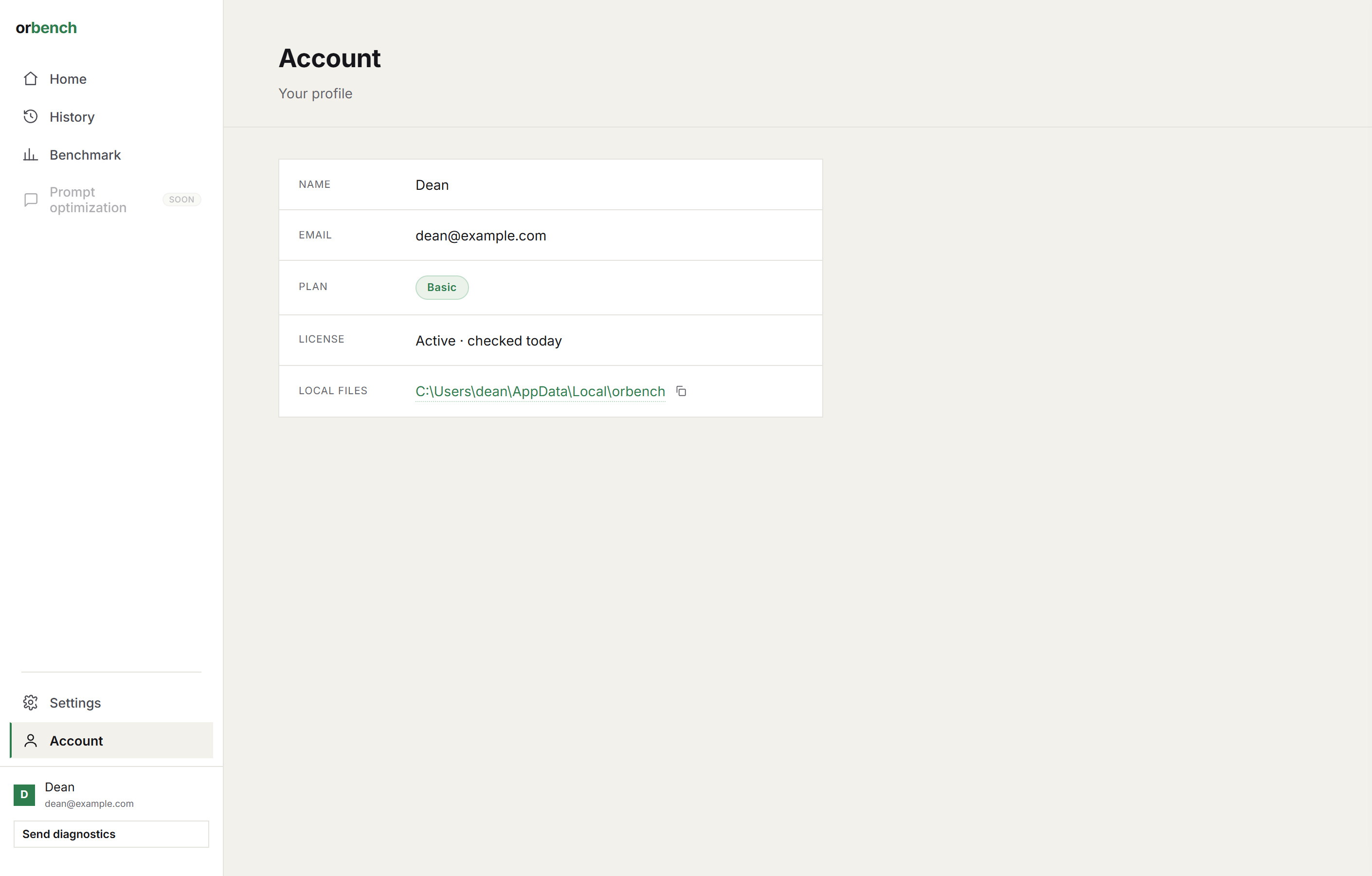
Account: the Local files row opens the data folder.
Formats are plain JSON and JSONL on purpose: results are grep-able, diff-able and yours. Uninstalling keeps this folder; delete it yourself for a full wipe.
Limits and defaults
| Item | Value | Notes |
|---|---|---|
| dataset rows per run | 500 | Cost predictability; split larger sets across runs. |
| compare | 3 runs | Side-by-side limit in Compare benchmarks. |
| trials | 1 | Raise it when scores look noisy. |
| judge trials | 1 | Up to 10; scores are averaged. |
| cap ($) | off | Optional per-run ceiling; overshoots by at most one call. |
| max tokens | off | Optional reply length cap; candidates only, never the judge. |
| rate limit | off | Optional requests per minute per model; paces model and judge calls. |
| retries after 429 | 2 | Backoff of 1.5 s then 3 s; model and judge calls alike. |
| retries after empty answer | 1 | One fresh call; still empty means an error row at the minimum score. |
| offline use | license duration | The cached license is cryptographically signed; offline validity is bounded by the license's own expiry, not a grace window. |
| launch check timeout | 10 s | A slow network falls back to the cached license; launch never hangs. |
| app port | 5000 | Falls back to a free port if taken; one instance per machine. |
FAQ
Does orbench send my prompts or results anywhere?
Prompts go to OpenRouter, which is the point. License checks go to the license server, and the app checks the update feed on launch. Results, logs and keys stay on your machine and are not part of either check. There are no usage analytics.
Why do two identical calls cost slightly different amounts?
Providers route, cache and bill dynamically. orbench reports what each call actually cost, so small differences between identical calls are real, and useful signal.
Can the judge be from a different provider than the candidates?
Yes. The judge is just another OpenRouter model; cross-family judging reduces same-family bias.
A model errored mid-run. Did I lose the run?
No. Rate limits retry with backoff and empty answers are retried once; whatever still fails becomes an error row at the minimum score, with the reason and a trace of the failed call. Every completed response is saved as it happens, and cancelling a run keeps everything finished so far.
How do updates work?
During the beta, new builds are announced by email and listed on the downloads page. Install over the previous version; the data folder is untouched.