guide
How to build a benchmark CSV
A benchmark CSV is the difference between "this model felt better" and a number you can defend. It is just a spreadsheet of your own tasks, one per row, and it is the input orbench replays against every model you want to compare. This guide covers the format the app expects, and how to design a task set that is still telling you something useful six months from now.
format UTF-8, comma-separated, one header row · limit 500 rows per run
What the file actually does
When you pick Upload a CSV as the task source, orbench reads the file in the app, shows you the columns it found and the row count, and stops there. Nothing is sent anywhere yet.
You then write a single prompt template that refers to your columns by name. At run time orbench walks the rows and, for each one, substitutes the values into the template to produce one real prompt. That prompt is sent to every model you selected, as many times as you set trials, and each reply is scored by the judge.
So a 20-row CSV with 3 models and 2 trials is 120 model calls, all driven by one template you wrote once. The CSV supplies the variation; the template supplies the instruction.
The format orbench expects
Standard comma-separated values, the kind every spreadsheet exports. A minimal file looks like this:
question,expected
"What is 7 * 8?","56"
"Capital of Australia?","Canberra"
The rules, in full:
| Rule | Detail |
|---|---|
| Header row | Required, and must be the first line. Those names become your placeholders. A file without one loses its first task and gives you nonsense column names. |
| Delimiter | Commas only. Semicolon or tab separated files are read as a single column, which is the usual cause of "1 column detected". |
| Encoding | UTF-8. In Excel, choose CSV UTF-8 on export rather than plain CSV, or accented characters and quotes arrive mangled. |
| Quoting | Wrap a value in double quotes if it contains a comma. To include a literal double quote inside a quoted value, double it: "she said ""no""". |
| One line per row | A value cannot contain a line break, even inside quotes. See the note below. |
| Whitespace | Leading and trailing spaces are trimmed from every column name and every value. |
| Blank lines | Skipped, so a trailing newline at the end of the file is fine. |
| Short rows | A row with fewer fields than the header is accepted; the missing columns come through empty. |
| Size | 500 rows maximum per run. Split a larger set across several runs, or use the row range picker. |
\n, a space, or a marker like <br> before exporting, and say in your prompt template how to read it.Checking it loaded correctly
After you drop the file in, the app prints the column names as clickable chips and a row count. Two things to confirm before going further: the number of columns matches what you expect, and the row count matches your spreadsheet minus the header. If either is off, the file is not really comma-separated, or a stray quote has swallowed the rest of the file.
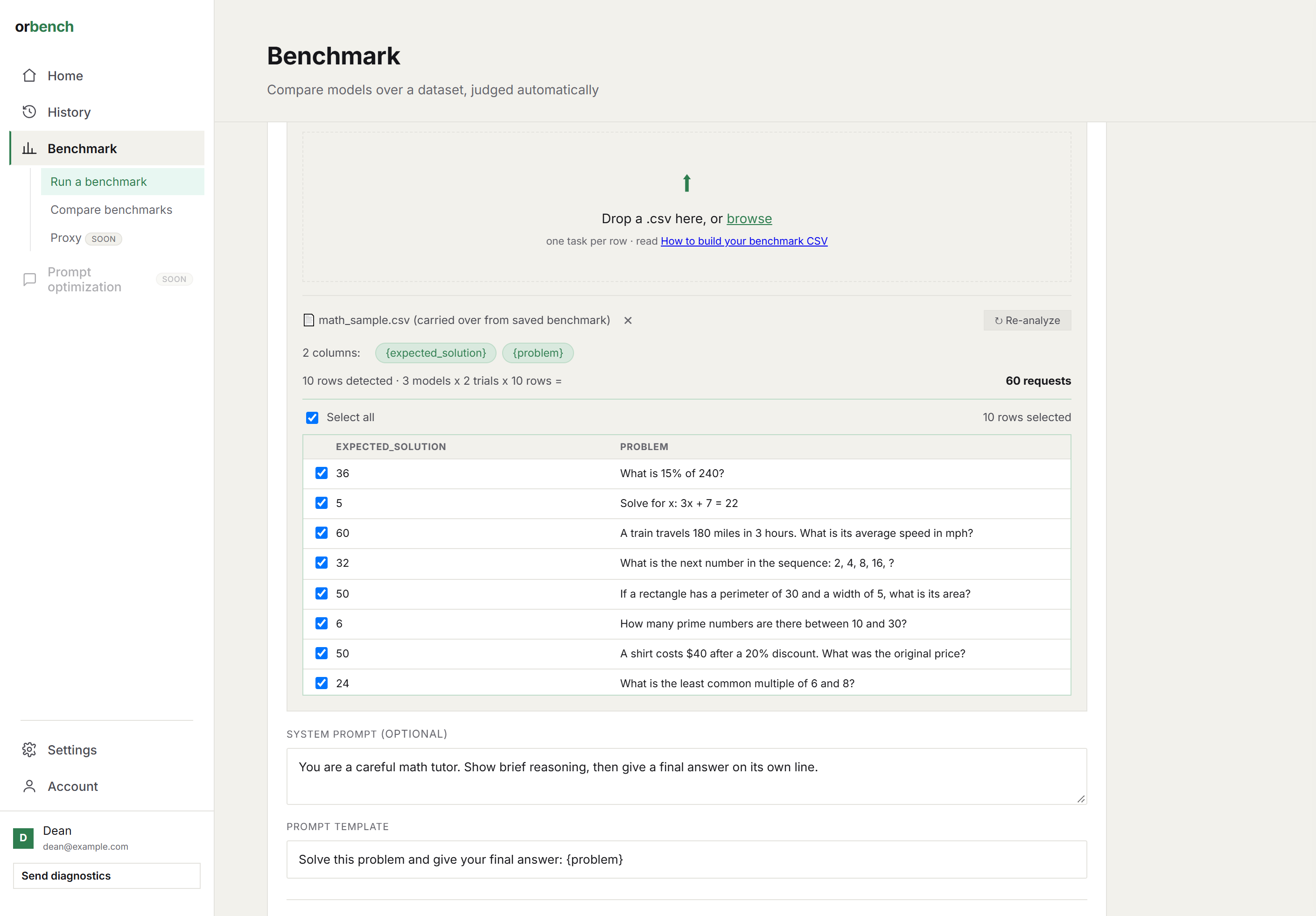
A CSV analyzed in the app: columns become chips you can click into the template, and rows 1 to 5 are selected out of 10.
Choosing your columns
Most benchmark CSVs need only two columns, and the second one is optional:
| Column | Purpose |
|---|---|
| The input | The thing that changes per task: the question, the ticket text, the document to summarize, the row of data to classify. This is the column your template centers on. |
| The expected answer | What a correct reply looks like. Never sent to the model, but referenced from the judge criteria so the judge grades against ground truth instead of vibes. |
| Anything else | Extra context the model needs (a customer tier, a language, a category), or metadata you want kept alongside the task so you can read the report by segment. |
Naming
Column names become {placeholders} verbatim, so pick names you will not mind typing. Short, lowercase, no spaces: question, ticket, expected, language. Spaces technically work ({customer tier}) but they read badly in a template and are easy to mistype. Avoid curly braces in names entirely.
Give the columns meaning rather than position. expected tells the next person what it is for; col2 does not, and you are the next person.
Writing the prompt template
The template is the instruction that stays the same across every row. Write it once, with placeholders where the row's values belong:
Answer with only the final number, no working. {question}Given the CSV above, row one becomes Answer with only the final number, no working. What is 7 * 8?. Click a column chip in the app to insert its placeholder at the cursor rather than typing it, which removes the commonest source of typos.
Put the constraints in the template, not the rows
Anything that applies to every task belongs in the template: output format, tone, length limit, what to do when the answer is unknown. Repeating it in every CSV row bloats the file and means a change requires re-exporting the whole thing. The CSV should carry only what genuinely varies.
Ask for an answer you can grade
A template that ends "explain your reasoning" produces replies that are hard to score consistently and expensive to judge. If you want a specific shape, say so: "Reply with a single word: positive, negative, or neutral." Scoring gets sharper and cheaper at the same time.
{questoin} and the model literally receives the text "{questoin}". orbench will not stop you, so read one assembled prompt before committing to a 500-row run. That same rule is what lets you safely write \boxed{answer} in a template without it being emptied out.A system prompt is available separately and applies to every row. Use it for persona and standing rules, and keep the template for the task itself.
Adding an expected answer
An expected column is what turns a benchmark from "which reply do I prefer" into a measurement. It is never shown to the candidate models. Instead you reference it from the judge criteria, which accept the same {column} placeholders as the prompt template and are filled in per row:
10: the reply's final answer equals {expected}.
 0: anything else.
The judge now compares each answer against that row's ground truth, so the score means the same thing on every row. Where there is no single right answer, an expected column still helps if you write it as a description of a good reply and grade against that:
10: the reply covers every point in {expected} and adds nothing false.
 5: covers roughly half, or hedges where {expected} is definite.
 0: contradicts {expected}, or refuses.
A response passes at two thirds of your score range or above, so 7.0 on a 1 to 10 scale. Anchor both ends of the rubric with concrete descriptions rather than adjectives; "thorough" means whatever the judge model decides it means today.
Designing a set worth keeping
Use your real traffic
The most valuable benchmark CSV is an export of tasks your system actually handled, with the outcomes you know were right. Invented test cases drift toward what you imagine is hard, which is rarely what is hard in production. Fifty real rows beat five hundred synthetic ones.
Include the cases that go wrong
A set where every model scores 95% tells you nothing and costs the same as a useful one. Deliberately load in the ambiguous tickets, the long inputs, the ones with a typo in the customer's message, the edge cases someone escalated last month. Discrimination between models comes from the hard rows.
One behavior per row
If a row tests both "extracts the right date" and "responds politely", a mid-range score is uninterpretable. Split it into two rows, or narrow the task. You want each score to tell you one thing.
Start on a slice
Untick Use all rows and run rows 1 to 5 first. It costs cents, and it catches a broken template, a badly quoted column or a judge rubric that does not fit before you have spent on the full set. Then run the whole file.
Then freeze it
The point of a benchmark is comparability over time. Once a set works, stop editing it: keep the file, the prompt template, the judge model and the criteria fixed, so a run from today is comparable with one from three months ago. If you need to add tasks, version the file (tickets-v2.csv) and treat it as a new baseline rather than quietly changing the meaning of your old numbers.
Keep it in version control
A benchmark CSV is a test suite. It belongs next to your code, reviewed when it changes, not in someone's Downloads folder.
When it does not load right
| Symptom | Cause |
|---|---|
| 1 column detected | The file is semicolon or tab separated. Re-export as comma separated. |
| Row count far too low | An unclosed double quote has merged the rest of the file into one value, or values contain line breaks. |
| Odd characters in a column name | Exported in the wrong encoding. Re-export as UTF-8. |
| First task missing | The file has no header row, so your first task was consumed as column names. |
| A placeholder appears in the prompt | The name does not match a column exactly. Names are case sensitive and trimmed, not normalized; click the chip instead of typing. |
| Rejected as too many rows | Over the 500-row per-run cap. Use the row range picker, or split the file. |
Common questions
What format does the CSV need to be?
UTF-8, comma-separated, with a header row as the first line and a maximum of 500 rows per run. Quote values that contain commas, and replace any line breaks inside values before exporting.
What columns should it have?
Most need only two: the input that changes per task and an optional expected answer the judge grades against. Extra columns can carry context the model needs, or metadata for reading the report by segment.
How do I use columns in the prompt?
Column names become {placeholders} verbatim in the prompt template. Each row's values are substituted in to produce one real prompt, sent to every selected model for as many trials as you set.
Is the expected answer shown to the model?
No. It is never sent to the candidate models. You reference it from the judge criteria instead, so the judge grades each reply against that row's ground truth.
Why does my file show as "1 column detected"?
It is almost certainly semicolon or tab separated rather than comma separated. Re-export as comma-separated CSV.
Run your CSV against every model at once
Drop the file in, write one template, and get quality, speed and cost per model on your own tasks.